Windows to macOS#
| Lab sheet (Windows) | Used on macOS | Purpose |
|---|---|---|
ipconfig /all |
ifconfig en0 |
Show the MAC (ether) and IPv4 (inet) of the Wi-Fi interface |
ping -4 Google.com.sa |
ping -c 4 google.com.sa |
macOS ping is IPv4 already. -c 4 stops after four echoes, like Windows |
nslookup Google.com.sa 8.8.8.8 |
nslookup google.com.sa 8.8.8.8 |
Same on both |
Expose the hardware MAC#
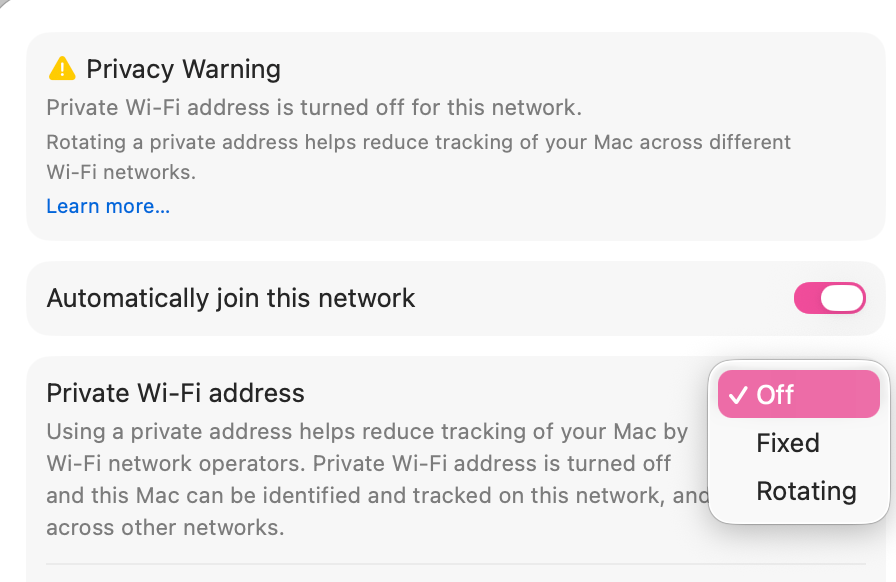
macOS gives each Wi-Fi network its own random MAC address by default. With that on, Wireshark would show a made-up address. I turned it off for the lab network under System Settings → Wi-Fi → Details… → Private Wi-Fi address → Off.
Read the interface#
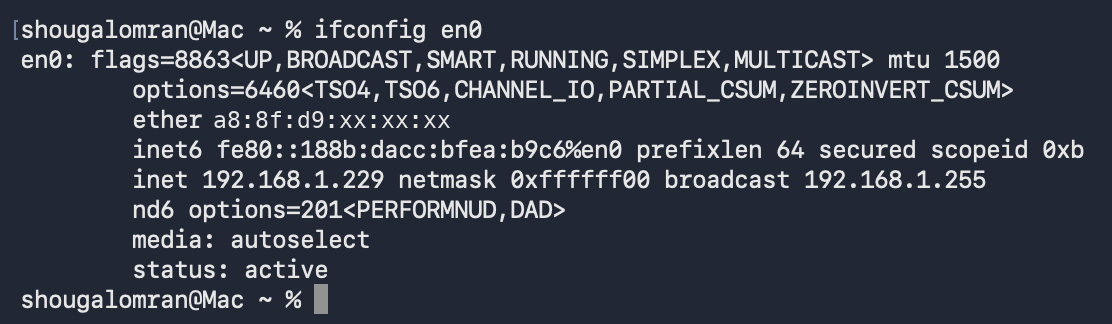
zsh · ifconfig en0
% ifconfig en0
en0: flags=8863<UP,BROADCAST,SMART,RUNNING,SIMPLEX,MULTICAST> mtu 1500
    ether a8:8f:d9:xx:xx:xx
    inet 192.168.1.229 netmask 0xffffff00 broadcast 192.168.1.255
    status: active
! trimmed: options, inet6, nd6 and media lines
ether is the MAC address (Layer 2) and inet is the IPv4 address (Layer 3). The netmask 0xffffff00 is 255.255.255.0, a /24.
Start the capture#
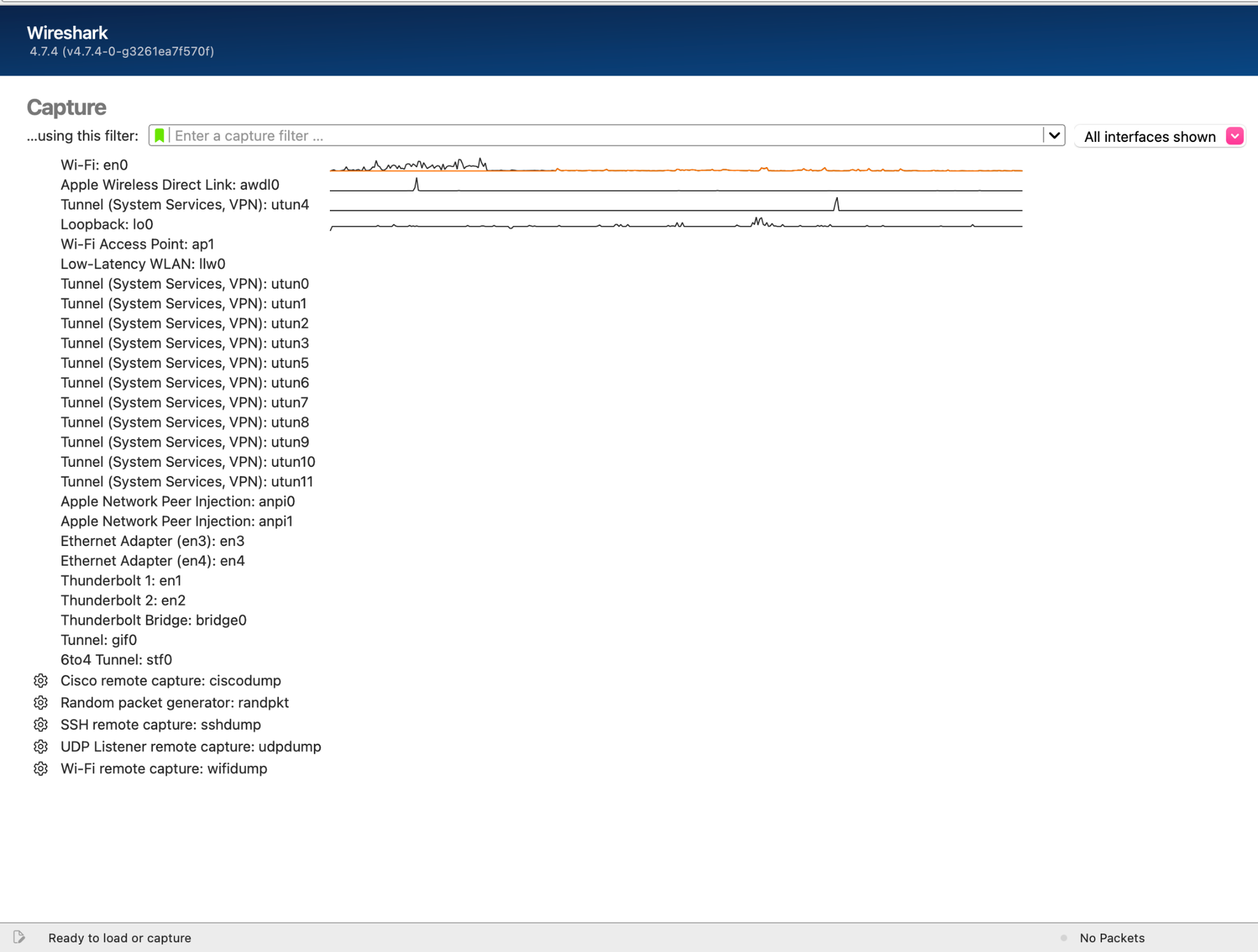
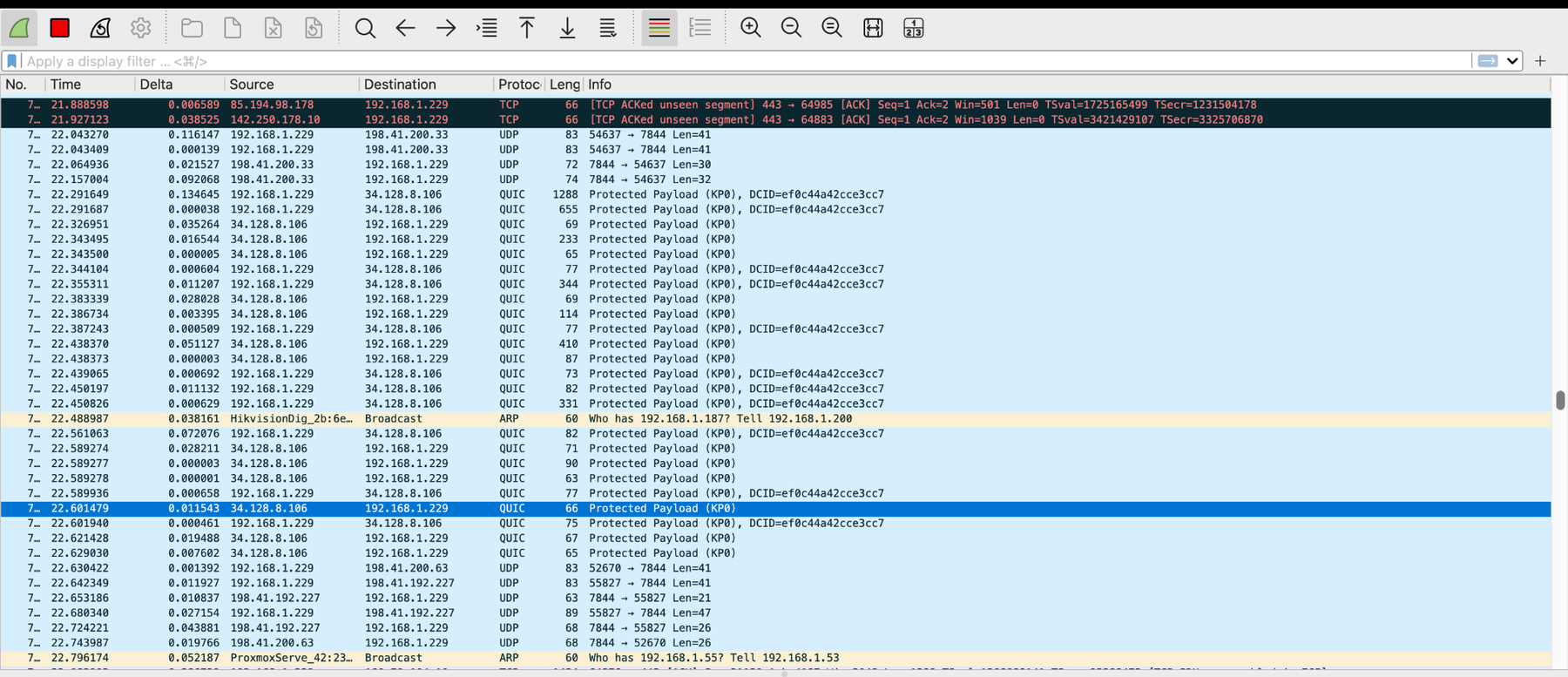
In Wireshark I selected Wi-Fi: en0 and started capturing. While it ran, I opened www.psu.edu.sa, sent an HTTP request to neverssl.com, and later ran the ping, so every part of the lab came from live traffic.